
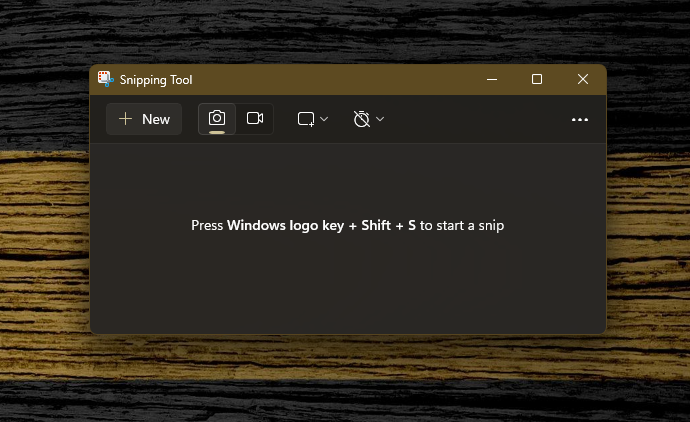
A Practical Look at the Snipping Tool: Modern Features That Make Everyday Work Easier
The Snipping Tool has been part of Windows for years, but the version included with Windows 11 has grown into something far more capable than a simple screenshot utility. What used to be a basic tool for grabbing a portion of your screen has evolved into a small productivity suite of its own, offering features that genuinely streamline daily work. For anyone who spends time documenting processes, preparing training material, reviewing drawings, or gathering information from the web, the Snipping Tool has quietly become one of the most useful built‑in apps on the system.
What makes it so helpful is that each feature solves a very real problem. Instead of bouncing between multiple applications to annotate an image, extract text, scan a QR code, or record a quick walkthrough, the Snipping Tool brings all of these tasks into one place. Below is a closer look at several of its most valuable capabilities and how they can make everyday work faster and more efficient.
Annotating Images for Clearer Communication
Once you capture a screenshot, the Snipping Tool opens a simple but surprisingly effective editor. You can draw, highlight, underline, or circle areas of interest, and the pen and highlighter tools feel natural and responsive. This is especially useful when you need to point out a specific setting in a dialog box, mark up a detail in a PDF, or call attention to a particular area of a drawing.
For engineers, surveyors, and anyone who works with technical content, this kind of quick markup is invaluable. Instead of opening a separate program just to add a note or arrow, you can annotate the image immediately and share it within seconds. It’s a small improvement, but it removes friction from a task that most of us perform multiple times a day.
Extracting Text Directly From Images
One of the most impressive additions to the Snipping Tool is its ability to pull text directly out of an image. If you capture a screenshot of a dialog box, a PDF, a scanned document, or even a photo of printed text, the tool can recognize the characters and convert them into editable text.
This is incredibly helpful when you need to copy a serial number, a layer name, a coordinate value, or a block of text from a screenshot. Instead of retyping it manually — and risking typos — you can extract it instantly. It’s a feature that feels almost invisible until you need it, and then it becomes something you rely on constantly.
Searching the Web Using an Image
Another modern capability is the option to perform an image‑based search. After capturing a screenshot, you can send the image to your default browser and search for visually similar content. This is useful when you’re trying to identify a piece of equipment, find a product, locate a reference image, or track down the source of a graphic.
For technical professionals, this can help when you’re trying to identify a symbol, a part, or a component you’ve seen in a drawing or on a website. Instead of guessing keywords, you let the image do the work. It’s a simple way to speed up research and reduce the time spent hunting for information.
Scanning QR Codes Without a Phone
QR codes are everywhere now — on equipment, in field reports, on plan sets, and even in digital submittals. The Snipping Tool can read QR codes directly from your screen. If you receive a PDF with a QR code or see one embedded in a document, you don’t need to pull out your phone or transfer the file to another device. You can capture the code with the Snipping Tool, and Windows will decode it instantly.
This is especially convenient when reviewing digital plans or scanning through online documentation. It keeps the workflow on your desktop and eliminates the awkward step of switching devices just to open a link.
Recording Video and Audio for Quick Demonstrations
One of the most transformative features in the Snipping Tool is its ability to record your screen. You can capture a portion of your display or the entire screen and save it as a video file. This is perfect for creating short tutorials, demonstrating a workflow, or showing someone how to perform a task without writing a long explanation.
The tool can also record audio, which makes it even more useful. Instead of sending a series of screenshots with notes, you can record a quick walkthrough explaining what you’re doing and why. For teams that collaborate remotely or need to document internal processes, this feature alone can save a tremendous amount of time.
A Tool That Quietly Improves Everyday Work
What makes the Snipping Tool so valuable is that it doesn’t try to be a full‑blown graphics editor or video production suite. Instead, it focuses on the small, frequent tasks that interrupt your workflow — capturing a screenshot, marking it up, copying text, scanning a QR code, or recording a quick demonstration. These are the kinds of tasks that happen dozens of times a week, and the Snipping Tool handles them with almost no friction.
For engineers, surveyors, designers, and anyone who works in a technical environment, these features help reduce context switching and keep your attention on the work that matters. It’s a simple tool, but when used well, it becomes one of the most efficient parts of your daily workflow.