
Unlocking Efficiency With Microsoft PowerToys: A Practical Guide for Civil Engineers and Land Surveyors
Civil engineering and land surveying have always depended on precision, consistency, and repeatable workflows. Whether you’re organizing project files, preparing exhibits, managing field data, or keeping your desktop environment under control, the small inefficiencies add up. Windows 11 is already a capable platform, but when you layer Microsoft PowerToys on top of it, the operating system becomes a far more powerful tool — especially for professionals who rely on structured project folders and predictable file management.
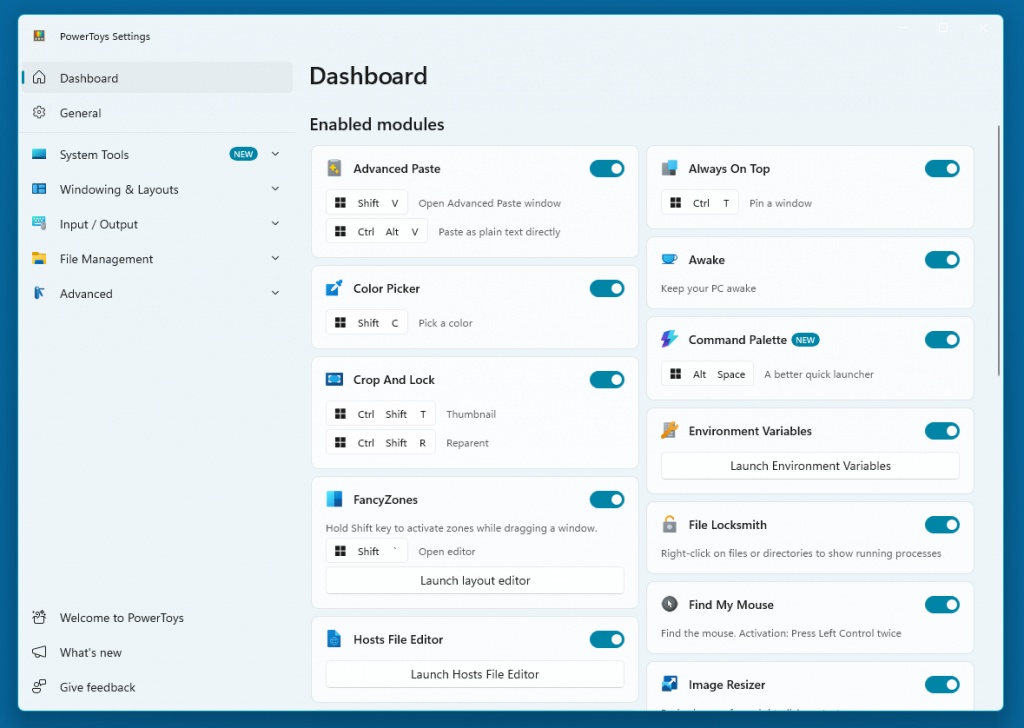
PowerToys isn’t new, but the modern version has matured into a serious productivity suite. For engineers and surveyors who spend their days juggling drawings, PDFs, imagery, reports, and field data, it can quietly eliminate dozens of repetitive tasks.
Below is a practical look at how PowerToys can help you work faster, stay organized, and maintain consistency across projects — with a special focus on standardized folder structures.
Why PowerToys Matters in a Production Environment
Most engineering and surveying teams have some form of standardized project directory. It might be a simple “Base Files / Survey / Design / Sheets” layout, or a more elaborate structure with dozens of subfolders. The challenge is always the same: How do you create these folders quickly, consistently, and without human error?
PowerToys offers several tools that directly support this kind of work, and when used together, they can dramatically reduce setup time for new projects.
PowerRename: The Unsung Hero of File Organization
PowerRename is one of the most valuable tools for anyone dealing with large sets of files — which describes nearly every engineer and surveyor.
Where it shines:
-
Renaming hundreds of photos from field visits
-
Cleaning up exported Civil 3D surfaces or corridor files
-
Standardizing naming conventions for plan sheets
-
Replacing inconsistent prefixes or suffixes
-
Removing junk text from drone imagery or GPS exports
Instead of renaming files one at a time, PowerRename lets you apply rules, patterns, and bulk changes in seconds. For teams that maintain strict naming standards, this tool alone can save hours per week.
File Locksmith: Know What’s Locking Your DWG or PDF
Few things are more frustrating than trying to delete or move a file only to see the classic Windows message:
“This file is in use by another process.”
File Locksmith shows you exactly which application or background process is holding the file open. For CAD users who constantly work with DWGs, Xrefs, PDFs, and temporary files, this is a lifesaver.
It’s especially helpful when:
-
A DWG is locked by a plotting service
-
A PDF is stuck open in a viewer
-
A Civil 3D temp file refuses to release
-
A network drive is holding onto a file handle
Instead of guessing, you get clarity — and you can get back to work.
PowerToys Run: A Faster, Cleaner Way to Launch Tools
PowerToys Run is essentially a supercharged Start Menu. Press Alt + Space, type a few letters, and launch anything instantly.
For engineers and surveyors, this is perfect for:
-
Opening Civil 3D, AutoCAD, Bluebeam, or GIS tools
-
Jumping directly to project folders
-
Launching scripts, batch files, or custom utilities
-
Opening Control Panel items without digging through menus
It’s fast, predictable, and keeps your hands on the keyboard — which is exactly where productivity lives.
File Templates + Standardized Folder Structures
This is where PowerToys becomes especially valuable for engineering and surveying teams.
Windows 11 already supports folder templates, but PowerToys enhances the process by making it easier to:
Create a “master project folder” with all subfolders pre‑built
Duplicate that structure instantly for new jobs
Apply consistent naming conventions
Avoid missing folders or typos
Keep survey, design, and construction teams aligned
A typical civil engineering or surveying project might include folders like:
01_Base Files
02_Survey
03_Design
04_Sheets
05_Reports
06_Imagery
07_Field Data
08_Exports
With PowerToys, you can create a template once and reuse it forever. No more manually building folder trees or relying on memory.
Important Note for Civil 3D Users
While PowerToys is excellent for general project folder creation, Civil 3D projects should still be created using Civil 3D’s built‑in project setup tools whenever possible. Civil 3D manages a significant amount of internal project metadata — including shortcuts, data references, working folders, and XML‑based configuration files.
Manually creating a Civil 3D project folder structure outside of Civil 3D can lead to:
-
Incorrect project metadata
-
Broken data shortcuts
-
Missing working folders
-
Conflicts with Civil 3D’s internal project expectations
If you’re working on a project that does not use Civil 3D, PowerToys is a perfect fit for building standardized folder structures.
If you are using Civil 3D, the safest approach is:
-
Start with a clean folder template that contains no Civil 3D shortcuts, XML files, or data references
-
Then let Civil 3D create or populate the folders it needs
-
Use PowerToys only for the non‑Civil‑3D portions of the project structure
This ensures you get the efficiency benefits of PowerToys without interfering with Civil 3D’s project intelligence.
Image Resizer: Perfect for Field Photos and Exhibits
Field photos are often massive — far larger than needed for reports, exhibits, or email attachments. Image Resizer lets you right‑click any photo (or batch of photos) and resize them instantly.
This is ideal for:
-
Reducing drone imagery for quick sharing
-
Preparing photos for plan sets
-
Compressing images for submittals
-
Standardizing photo sizes for documentation
It’s simple, fast, and built directly into File Explorer.
FancyZones: A Better Way to Work With Multiple Windows
Civil engineers and surveyors often work with:
-
Civil 3D
-
Bluebeam
-
GIS software
-
Excel
-
File Explorer
-
Email
-
Reference PDFs
FancyZones lets you create custom window layouts so you can snap applications into predictable positions. It’s especially useful on ultrawide monitors or dual‑screen setups.
Imagine having:
-
Civil 3D on the left
-
Bluebeam on the right
-
A narrow strip for File Explorer or notes
Every time you open your tools, they fall into place automatically.
Clipboard Manager: A Small Feature With Big Impact
Copying and pasting is something we do hundreds of times a day. PowerToys adds a clipboard history that lets you recall anything you’ve copied recently.
This is surprisingly helpful when:
-
Copying parcel numbers
-
Moving coordinate values
-
Reusing layer names
-
Copying multiple file paths
-
Working between Civil 3D and Excel
It’s one of those features you don’t realize you need until you use it.
Why PowerToys Fits Naturally Into Engineering and Surveying Workflows
Civil engineering and land surveying are built on structure, consistency, and repeatability. PowerToys supports those values by:
-
Reducing repetitive tasks
-
Enforcing naming and folder standards
-
Improving file management
-
Speeding up application launching
-
Enhancing multitasking
-
Making Windows feel more predictable
It’s not flashy — it’s practical. And practical tools are the ones that make the biggest difference in production environments.
Final Thoughts
PowerToys isn’t a replacement for CAD software, GIS tools, or field data systems. Instead, it strengthens the foundation you work on every day: Windows itself. By smoothing out the rough edges of file management, window organization, and workflow consistency, it helps engineers and surveyors stay focused on the work that actually matters.
Used thoughtfully — especially alongside Civil 3D’s own project creation tools — PowerToys can become one of the simplest and most effective ways to boost efficiency across your entire workflow.